Fix the scale of an STL
3D files don't store their unit reliably. If the part opened at 3 mm instead of 76, it was probably in inches: fix it with one click.
Free
Free, no sign-up and no time limit. The file stays on your computer.
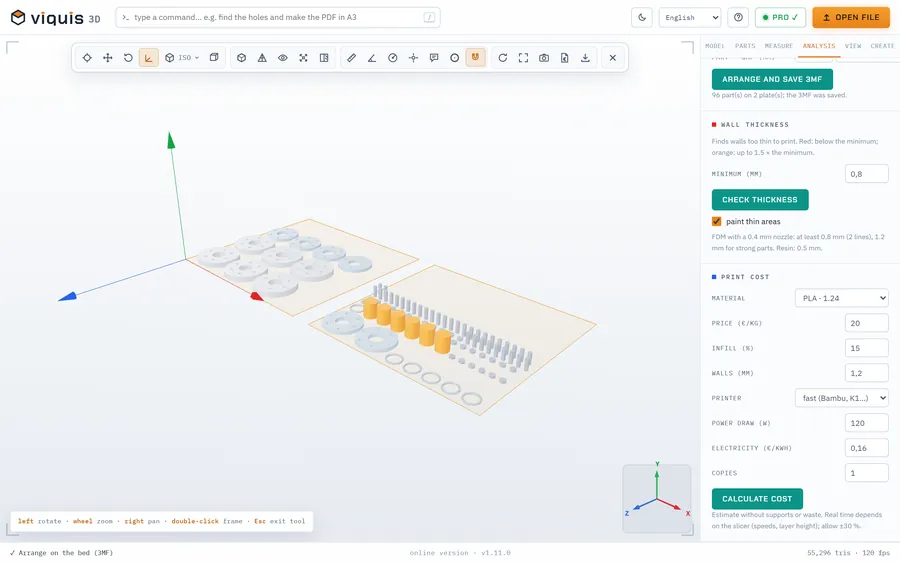
How it works
- 1
Open the file. The app warns you if the part looks too small or too big.
- 2
In the Model tab → Scale, choose inches → mm, cm → mm or m → mm.
- 3
Or type a scale in % or an exact size on one axis, and click Apply.
- 4
To save the part at its new size, use Export (Pro).
Why Viquis 3D
- Inches to millimetres means multiplying by 25.4: the app does the maths.
- Exact size: say how many mm one axis should be and the rest follows.
- Original size puts everything back.
- Free, in your browser.
Questions
Why did my STL come out tiny?
STL does not store the unit. If it was drawn in inches and read as millimetres, it comes out 25.4 times smaller.
Can I save the fixed file?
Fixing the scale is free; saving the new file (Export) is a Pro feature.
Does scaling change the measurements?
Yes, it really changes the part. Any measurements you made are cleared.
Try it now
The app opens in its own tab with a sample assembly. Drop your file on top of it.
Opens in its own tab. Free; Pro is activated inside the app with your key.
More tools
STEP viewer
Open STEP and STP files in your browser, see the assembly parts and measure.
See the tool FreeSTL viewer
View STL, 3MF and OBJ files in 3D and measure them, with nothing to install.
See the tool FreeLithophane maker
Turn a photo into a relief panel that shows up against the light.
See the tool FreeText to STL
Signs, plates and keychains with text, ready to print.
See the tool